Integrating Terraform with Azure
Terraform is developed by Hashicorp and the language used in the Terraform is called HCL (Hashicorp Language)
Terraform Contains the following things (Maximum only these are used)
Providers - Providers are generally used to interact with cloud providers, SaaS providers and other APIs.
Resources - Resources are the most important element in the terraform language. Each resource block describes one or more infrastructure objects such as virtual networks, compute instances or higher-level components such as DNS records
Variables - Using Variables in Terraform configurations makes our deployment more dynamic. A separate file with the name "variables.tf" or "tf.vars" needs to be created in the working directory to store all variables for our use in the main.tf configuration file.
Statefile- After the deployment is finished terraform creates a state file to keep track of the current state of the infrastructure
It will use this file to compare when you deploy/destroy resources, in other words, it compares the "current state" with the "desired state" using the file
A file with a name of "terraform.tfstate" will be created in your working directory
Provisioners - Provisioners provide the ability to run additional steps or tasks when a resource is created or destroyed
This is not a replacement for configuration management tools.
Backends
Data Sources
Service Principals
Authenticating using a Service Principal with a Client Secret
Now, we are going to connect to the Aure Cloud, for that we require a couple of things as shown below
# Configure the Microsoft Azure Provider
provider "azurerm" {
  features {}

  client_id       = "00000000-0000-0000-0000-000000000000"
  client_secret   = var.client_secret
  tenant_id       = "10000000-0000-0000-0000-000000000000"
  subscription_id = "20000000-0000-0000-0000-000000000000"
}
Now, let's go get them.
Let's create a service account, for this, we need to go to Azure Entra (Previously known as Azure Active Directory) and type Azure Entra in the top search bar, once it shows up, click on that.
In the Azure Entra ---> In the left side pane. Click on the App Registrations
Here Click on New Registration which will show up on the page as shown below
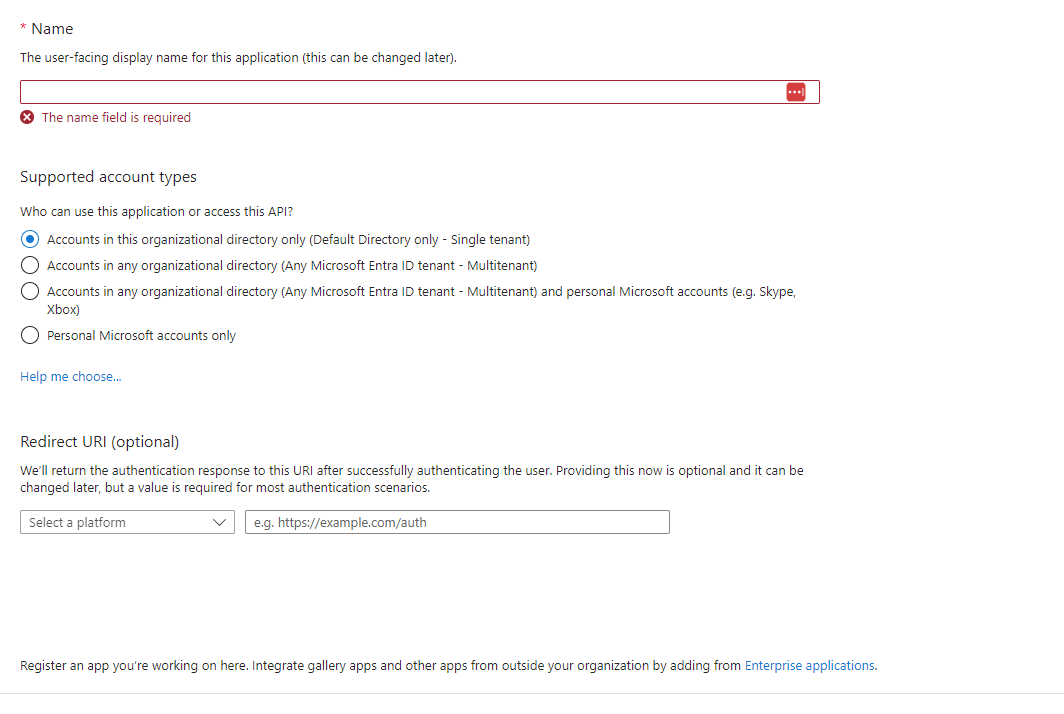
Enter the following details
Name :
Supported Account Types :
What can use this application or access this API: Accounts in this organizational directory only (Default Directory only - Single tenant)
Redirect URI(Optional):
Select Platform as Web in the drop-down
Click Create
Now, it will provide you with all the details as shown below
Application ID: xxxxxxxxxxxxxxxx-xxxx-xxxx-xxxxxxxxxxxx ( This is our client ID)
Directory ID: XXXXXXXXXXXXXXX-XXXX-XXXX-XXXXXXXXXXXXXX( This is Tenant ID)
Now click on the Certificates & Secrets in the name User that we have created
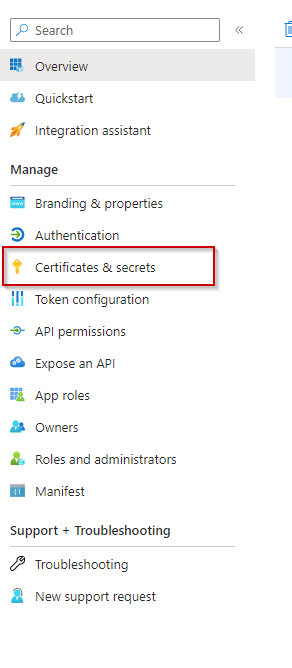
Next, Click on the + New Client Secret, Add a Client secret --- Name: Secret1 and click Create.
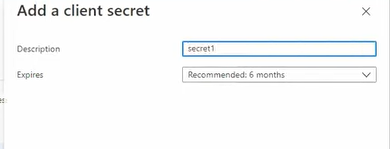
As soon as you create a client secret, you will see a value that was created. Copy the value that is shown in the value column (DONT NOT COPY THE SECRET ID, YOU NEED TO COPY VALUE ONLY ALSO REMEMBER) with this we got the client secret ID as well.
Now we need a Subscription ID for that
Go to Resource Groups --> Select any Resource Group that you already have created, In that, you can see the subscription id (COPY THAT)
Now, you have all four IDs that you need to connect from Terraform to Azure.
now, copy the below copy in your terraform, main.tf script and update all the IDs that you have copied before
terraform {
  required_providers {
    azurerm = {
      source = "hashicorp/azurerm"
      version = "3.78.0"
    }
  }
}
# Configure the Microsoft Azure Provider
provider "azurerm" {
  features {}

  client_id       = "00000000-0000-0000-0000-000000000000"
  client_secret   = "00000000-0000-0000-0000-000000000000"
  tenant_id       = "10000000-0000-0000-0000-000000000000"
  subscription_id = "20000000-0000-0000-0000-000000000000"
}
Now, we are going to add the resource group block to this file.
resource "azurerm_resource_group" "example" {
  name     = "7FDevopsContent"
  location = "West Europe"
}
In the above block, it's more like
<type of the component> <type of resource> <name of resource code block(which means this three lines of code that we wrote , we are giving a name to it)>
Now let's create a Vnet let's just copy this block from the website or add one more flower bracket at the end of the code.
resource "azurerm_virtual_network" "example" {
  name                = "example-network"
  location            = azurerm_resource_group.example.location
  resource_group_name = azurerm_resource_group.example.name
  address_space       = ["10.0.0.0/16"]
  dns_servers         = ["10.0.0.4", "10.0.0.5"]

  subnet {
    name           = "subnet1"
    address_prefix = "10.0.1.0/24"
  }
}
Now add all the details as shown below
resource "azurerm_virtual_network" "examplevnet" {
  name                = "7FDevopsVnet"
  location            = azurerm_resource_group.example.location
  resource_group_name = azurerm_resource_group.example.name
  address_space       = ["10.0.0.0/16"]
  dns_servers         = ["10.0.0.4", "10.0.0.5"]

  subnet {
    name           = "subnet1"
    address_prefix = "10.0.1.0/24"
  }
}